How to Reset Your Hotmail Password Step by Step in 2026
Forgot your Hotmail password but still have your recovery phone or email? You can fix this in a few minutes.
You’ll stay on this site.
If you forgot your Hotmail password but you still have a recovery phone number or a backup email on file, you are in good shape. The reset takes a few minutes and it costs nothing. One thing worth knowing first: Hotmail, Outlook.com, Live, and MSN addresses all sign in through a single Microsoft account, so the steps are the same no matter which of those your address ends in. This guide walks you through the reset in the order Microsoft actually shows it, and it points out where people get stuck or get tricked.
Start at the real Microsoft reset page
The only place to reset a Hotmail password is Microsoft’s own page at account.live.com/password/reset. The simplest way to get there is through the real sign-in screen. Go to Outlook.com, type your address, and when the password box appears, click the “Forgot password” link below it. That link sends you straight to the official reset flow with your account already attached, so you skip a step and you know the page is genuine.
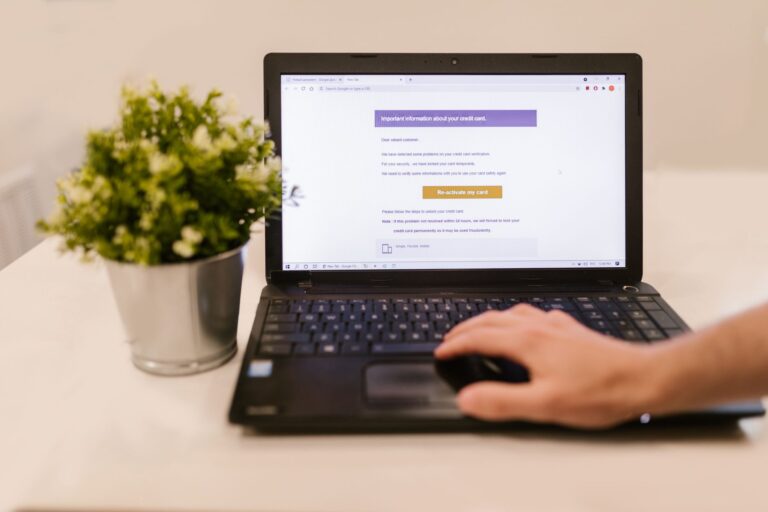
Do not get there through a search ad or a sponsored result that promises an instant reset or a one-click fix. Those listings often sit above the real result and lead to lookalike pages built to steal your address and password. Microsoft never charges to reset a password and never asks you to pay a fee or call a number to recover one. If a page asks for money, a credit card, or your current password just to start the reset, close it. The real flow only asks you to confirm a method you set up yourself.
Reset from a device Microsoft already trusts
Where you run the reset matters more than most people expect. If you do it on a computer or phone you have used to sign in to this account before, on your usual home network, Microsoft recognizes the device and the location. That recognition quietly removes a lot of the harder identity questions, because the system already has reason to believe it is you. Trying to reset from a brand new device on an unfamiliar network is the version that tends to trigger extra checks.
An old phone or tablet that is still signed in to the account is your best friend here. If you have a tablet in a drawer or a spare phone that never got logged out, Microsoft can often push an approval to it, and you confirm the reset with a single tap on that device. The same goes for the Microsoft Authenticator app if you ever installed it. Before you start, dig out anything that is still logged in to the account, because one of those can turn a frustrating process into a thirty second one.
Work through the verification choices in order
Once you reach the reset page, Microsoft asks how you want to prove the account is yours. Take the options in order and pick the fastest one you can actually receive. A code sent by text to your recovery phone is usually quickest, and a code to your recovery email is the next best. The page shows a masked hint, like the last two digits of a phone number or the first letter of an email, so you can tell which method points to something you still control. Choose that one, wait for the code, type it in, and you are most of the way there.
If the first method fails, because the phone is disconnected or you no longer reach that inbox, look for the alternate link on the same screen. It usually reads “I do not have any of these” or “Try another way to sign in.” That link moves you to a different verification path instead of leaving you stuck on the one that did not work. Send a code only to an address or number you can open right now, and never type a code into a separate site or read it aloud to anyone who calls you. A real code from Microsoft is entered on the Microsoft page and nowhere else.
Pick a new passphrase you will remember
After you verify, Microsoft asks you to set a new password. Skip the short word with a number and an exclamation point. A passphrase works better. Four or five unrelated words strung together, something like copper-lantern-river-seventeen, is long, hard to guess, and much easier to recall than a tangle of symbols. Make it different from any password you have reused elsewhere, since reused passwords are how one leaked account turns into several.
To make sure this is the last time you go through a reset, think about a password manager. The browser you already use can store and fill the password for you, and dedicated managers do the same across every device. You create one strong master password, the manager remembers the rest, and you stop relying on memory or sticky notes. Once it saves your new Hotmail password, signing in becomes automatic and you never have to invent a memorable-but-strong password on the spot again.
Recommended next steps
Once you are back in, spend two minutes hardening the account so this does not happen again. Open your security settings and confirm the recovery phone number and backup email are current, then remove any old number you no longer use. Turn on two-step verification, which adds a second check at sign-in and makes a stolen password far less useful to anyone else. If you got through the reset without a working phone or recovery email, do not improvise. Follow the on-screen buttons through the “I do not have any of these” path, fill out the recovery form Microsoft offers, and answer as much as you can, because that form is the official route when no quick method is left.
You’ll stay on this site.
Frequently asked questions
What if I do not remember any old password at all?
That is fine. The reset flow does not ask for your old password. It only asks you to prove the account is yours through a recovery method you set up, like a code by text or email. As long as one of those still reaches you, a forgotten old password does not block the reset.
Microsoft says it cannot verify the account is mine. What now?
Use the alternate link on the verification screen, usually “I do not have any of these,” which opens the account recovery form. Fill it out from a device and network you have used for the account before, and give as much accurate detail as you can. Microsoft reviews it and emails a decision, so this path takes longer than a simple code, but it exists for exactly this case.
How long should the reset code take to arrive?
A text or email code normally lands within a minute or two. If nothing shows up after a few minutes, check your spam folder for email codes, confirm you picked the right method, and use the resend option. A slow or missing code often means that phone or inbox is no longer active, so try another listed method instead.
Is it safe to reset my password on public Wi-Fi?
It is better to wait for a network you trust, like your home connection. Public Wi-Fi is more exposed, and resetting from an unfamiliar network can also trigger extra checks because Microsoft does not recognize it. If you have to use public Wi-Fi, make sure the page is the real Microsoft site before you enter anything, and change the password again later from home.
Will resetting my password log me out everywhere?
Yes, and that is the point. Changing the password signs the account out of other devices and apps that were using the old one, which kicks out anyone who should not be there. You will need to sign in again with the new password on your own phone, computer, and mail apps, so expect a few re-logins right after the reset.
Resetting a Hotmail password is simple when you still have a recovery method and you start in the right place. Go through the real sign-in screen to Microsoft’s official reset page, run it from a device the account already trusts, pick the verification option you can actually receive, and set a passphrase you will not lose. Then tidy up your recovery details and switch on two-step verification so the next forgotten password is a quick fix instead of a scramble.
Sources consulted: Microsoft account support and the U.S. Federal Trade Commission consumer advice on protecting your online accounts (consumer.ftc.gov).