How to Set Up a Free Email Account on Your Phone, Step by Step
You just unboxed a phone, or it’s the only device you own, and you need a working email before anything else will let you in.
You’ll stay on this site
A new email account is usually the first thing a smartphone asks for. You need one to download apps from the App Store or Google Play, to apply for a job, to sign up for benefits, or to verify yourself with a government website. The good news is that you can set the whole thing up from the phone in your hand, in under ten minutes, without a computer.
This guide walks you through it on both Android and iPhone. The screens may look slightly different depending on your phone model and software version, but the order of steps is the same.
What you need before you start
Setting up email goes faster when you have a few things ready first. None of this costs money, and none of it takes long to gather.
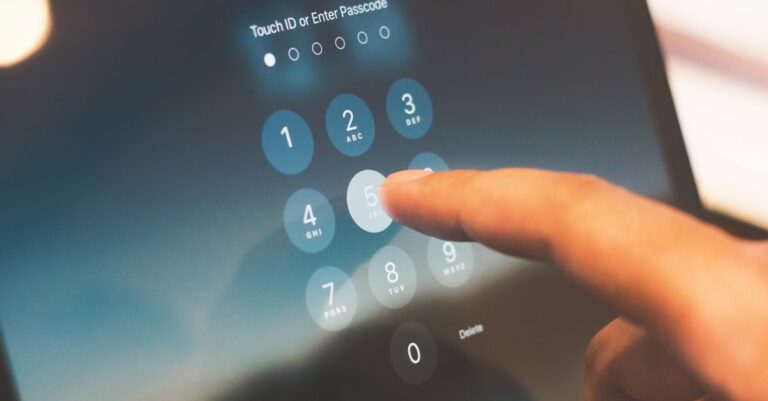
Before you start, decide on a password and write it down somewhere safe, like a notebook you keep at home or a password manager app. A strong password is long, around twelve characters or more, and mixes letters, numbers, and a symbol. The FTC and CISA both recommend a passphrase, which is a few random words strung together, because it is easier to remember and harder to guess.
Setting it up on an Android phone
Most Android phones come with a Google account prompt during setup, and a Gmail address is created as part of it. If you skipped that step, or you want a second account, you can add one at any time.
Open the Settings app and scroll to “Accounts” or “Passwords and accounts.” Tap “Add account,” then choose Google (or another provider if you prefer). On the next screen, tap “Create account” and select “For myself.” You then type your first and last name, pick the part that goes before the @ sign (your email handle), and set your password.
You can also do all of this inside the Gmail app. Open Gmail, tap your profile circle in the top right, choose “Add another account,” then “Google,” then “Create account.” The app walks you through the same fields. Either path lands you in the same place: a live inbox you can start using right away.
Setting it up on an iPhone
An iPhone already has an Apple Account tied to your iCloud setup, and you can turn on a free iCloud email address from there. To do that, open Settings, tap your name at the top, then “iCloud,” then “iCloud Mail,” and follow the prompt to create your address.
If you would rather have a Gmail, Outlook, or Yahoo address, the iPhone handles those too. Open Settings, scroll down to “Apps,” tap “Mail,” then “Mail Accounts,” then “Add Account.” Pick your provider from the list and tap “Create account” if the option appears, or open that provider’s own app from the App Store and sign up inside it.
Many people find the provider’s own app the simplest route on iPhone. Search the App Store for Gmail or Outlook, install it, open it, and tap “Create account.” The signup form is the same one you would see on a computer, just sized for the phone.
Verifying your phone number and finishing the profile
After you choose a handle and password, the provider asks for a phone number. Type it carefully and tap to send the code. A text arrives within a minute with a six-digit code. Enter that code on the screen to prove the number is yours.
Next comes recovery information. This is how you get back in if you forget your password, so it matters. Add a backup phone number or a second email if you have one, and answer any recovery questions honestly. Keep this information current, because it is your only way back into a locked account.
Before you close the setup, turn on two-factor authentication, often shown as 2FA or two-step verification. With it on, signing in from a new device asks for a code as well as your password, so a stolen password alone is not enough to break in. This one setting does more to protect you from identity theft than almost anything else, and it takes about thirty seconds to switch on.
Common snags and quick fixes
If the screen says your handle is already taken, someone else got there first. Add a number or a middle initial, like jane.smith92, and try again. Avoid your birth year or anything tied to your identity.
If the verification code does not arrive, wait two minutes, then tap “Resend.” Check that you typed the right number and that you have signal. A weak connection often holds the text back. Switching from mobile data to Wi-Fi, or the other way around, clears this up surprisingly often.
If you see a weak-password warning, the provider is telling you the password is easy to guess. Make it longer and add a symbol or two. Do not reuse a password from another account, because if that other account is ever breached, this one is exposed too.
Recommended next steps
Once your inbox is live, send yourself a quick test message to confirm everything works, then add the account to your phone’s contacts so it shows up where you expect. If this email is for job hunting or anything official, a clean, professional-looking handle helps, and choosing the right provider for your needs is worth a minute of thought. The buttons below take you to both.
You’ll stay on this site
Frequently asked questions
Can I set up email on a phone without a computer at all?
Yes. Everything covered here runs entirely on the phone, through Settings or the provider’s app. You never need a separate computer.
Do I have to give a phone number to create the account?
Most providers ask for one to send a verification code and to help you recover the account later. A few let you skip it, but adding a number makes it much easier to get back in if you are locked out.
Is a free email account really free, with no hidden charge?
Yes. Gmail, Outlook, Yahoo, iCloud, and Proton all offer a free tier with no cost to set up or use. Paid plans exist for extra storage, but you are not required to buy one.
What if I forget the password I just made?
Tap “Forgot password” on the sign-in screen. The provider sends a reset code to your recovery phone or email. This is why keeping that recovery information accurate is so important.
Can I use the same email on both an Android phone and an iPhone?
Yes. An email account is not tied to one phone. Sign in with your address and password on any device, and the same inbox shows up everywhere.
Setting up email on a phone is one of those tasks that feels bigger than it is. Take it one screen at a time, keep your password and recovery details somewhere safe, and switch on two-factor authentication before you finish. In a few minutes you will have an inbox that works for the App Store, for job applications, and for any service that asks you to confirm who you are.
Sources consulted: Google Account Help (account.google.com) and the FTC consumer advice on creating strong passwords (consumer.ftc.gov).